Dagu Console
Dagu Console shows how the runs of your synced projects go, in any browser, your phone’s included, at console.dagu.sh. Your computers still do the work. The console receives each run’s status, never its logs, outputs, or secret values.
What you need
Section titled “What you need”- A Dagu Cloud account and a synced project. Every plan works, the free plan included. A project that is not synced is never reported.
- To follow more than one computer, Kitewell Team. A free account and Kitewell Personal each hold one computer.
Sign in to Dagu Console with the account your computers use. The workspace owner sees every synced project and every computer. Anyone else in the workspace sees the runs of the projects they have a role on, their own computers, and the computers that ran those projects.
Follow runs
Section titled “Follow runs”The Monitoring pages cover Kitewell computers and Dagu servers alike:
- Overview: how many computers are reporting, today’s failures, open alerts, and the computers that need attention.
- Computers: each computer with its Status, Reporting or Not reporting, its user, Kitewell version, system, last report, and its runs in progress and failed today. Choose a computer for its runs of the last 14 days.
- Runs: every run, by project, workflow, status, and time.
- Insights: runs, failures, success rate, and duration for each workflow, over 7, 30, or 90 days.
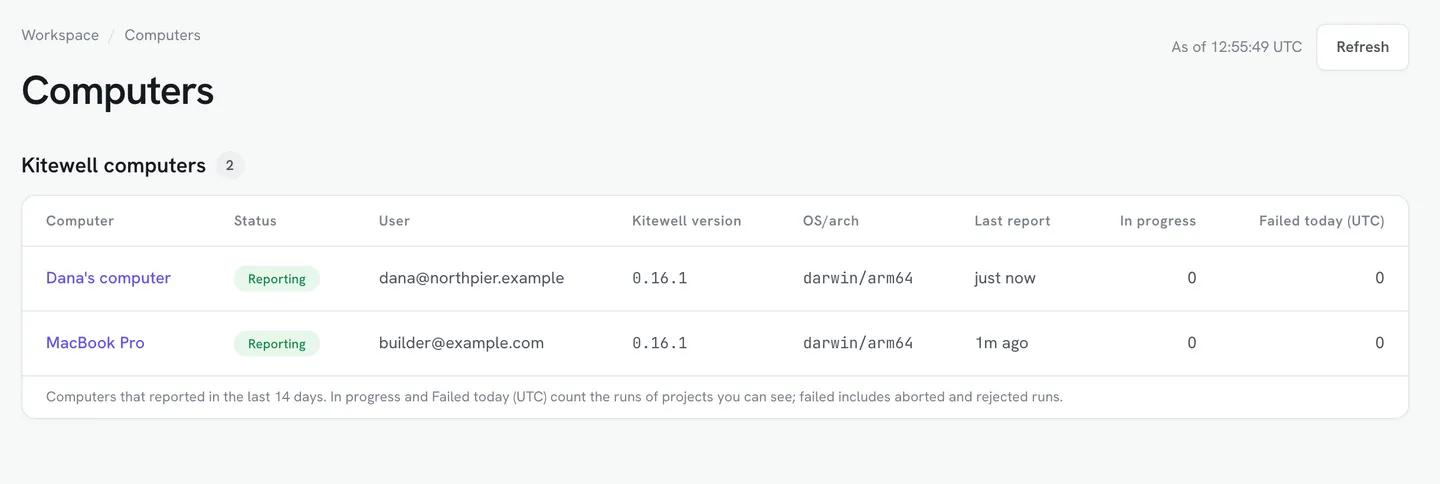
A computer reports every two minutes, or sooner when its runs in progress change. A page shows what had arrived when it opened; choose Refresh for the latest.
Alerts from Dagu Console
Section titled “Alerts from Dagu Console”Dagu Console opens two kinds of alert, on every plan:
- A workflow failed. A workflow has one alert however many computers run it. A later failure on any computer adds to it, and the next success on any computer resolves it. Aborted and rejected runs are counted but do not alert.
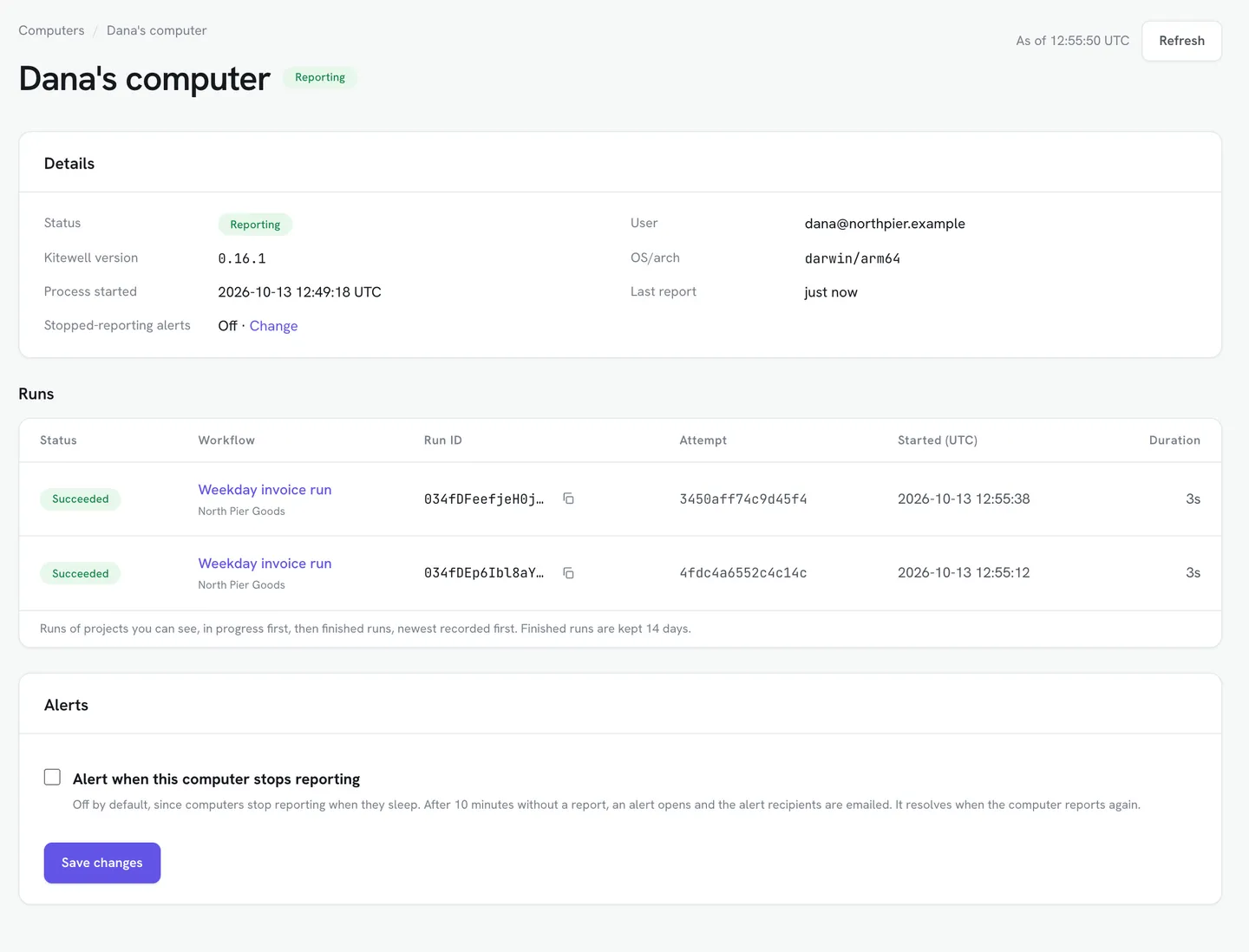
- A computer stopped reporting. After 10 minutes without a report the alert opens, and it resolves when the computer reports again. It is off by default, since a computer stops reporting whenever it sleeps.
To watch a computer meant to stay on, the workspace owner opens it under Computers, ticks Alert when this computer stops reporting, and chooses Save changes.
Emails go out when an alert opens and when it resolves:
- A computer that stopped reporting is emailed to the workspace owner.
- A failed workflow is emailed once the owner turns it on: in Settings, under Alert emails, tick Kitewell on the Owners and admins row and choose Save changes. It goes to the owner and to the project’s admins.
- Add a recipient adds a Member or an Outside address with Kitewell ticked. Both hear about computers that stop reporting and about failed workflows: a member for the projects they can open and the computers they can see, an outside address for every project once it is verified.
Kitewell’s alerts and Dagu Console’s
Section titled “Kitewell’s alerts and Dagu Console’s”Kitewell’s own alerts come from the computer. The two work side by side:
| Kitewell’s alerts | Dagu Console’s alerts | |
|---|---|---|
| Sent by | The computer | Dagu Cloud |
| Plan | Personal and Team | Every plan |
| Events | Fails, recovers, needs input, misses a schedule, runs long, is cancelled, succeeds, finishes a batch | A workflow failed; a computer stopped reporting |
| Channels | This device, email, Slack, Microsoft Teams, PagerDuty, webhook | |
| While the computer sleeps | Nothing is sent; missed schedules are reported when it wakes | The stopped-reporting alert opens |
What Dagu Console keeps
Section titled “What Dagu Console keeps”- Each run’s workflow, status, trigger, times, and failed step names, for 14 days. A workspace keeps up to 500 finished runs a day (UTC); past that, Device settings says when its run history resumes.
- Each workflow’s daily totals, for the insights, for 13 months.
- Alerts, for 90 days after they resolve.
- A computer that has not reported for 30 days is removed, with everything it reported.
To stop sending run status, the workspace owner turns it off, as Follow runs in Dagu Cloud describes. The computers then report only that they run.