Alerts
An alert tells you when a workflow needs you — it failed, it is waiting for somebody to approve something, it did not start when it should have — so you do not have to keep Kitewell open to find out.
What you need
Section titled “What you need”Alerts are part of Kitewell Personal and Team. On the free plan the Notifications page offers the upgrade instead, and nothing is sent: not an email, not a message, not even a notification on this computer. Nothing is held back for later either, so alerts start from the moment the plan is in place.
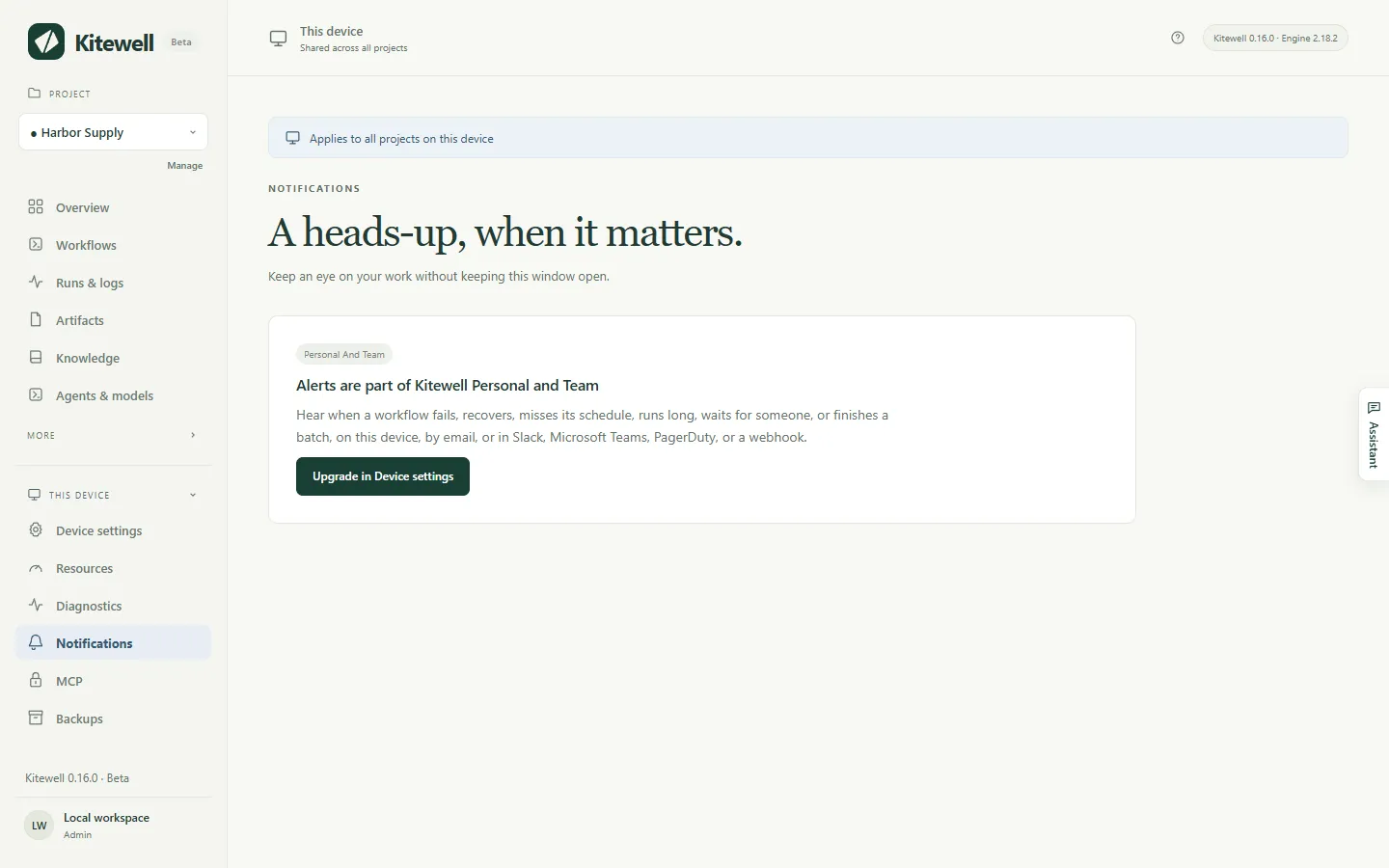
A channel saved under an earlier plan stays listed under Saved channels, where you can remove it. It sends nothing until the plan is back.
Choose where alerts go
Section titled “Choose where alerts go”Open This device → Notifications. A channel is somewhere alerts arrive. Choose Add channel, pick its Type, give it a Name, and fill in what it needs:
- This device shows a notification on this computer. It is there from the start: turn on Notify on this device under Desktop notifications, and allow notifications when the system asks. It needs the installed Kitewell app, not just a browser window.
- Email takes Recipients, a list of addresses. The server they go through is set once for the whole device under Email server: SMTP server, Port, Username, Password, Send from, and Connection security, which offers STARTTLS (usually port 587) and TLS (usually port 465). An encrypted connection is required. Use an app password if your provider asks for one.
- Slack takes an Incoming webhook URL. Add an incoming webhook to the channel in Slack and paste its address.
- Microsoft Teams takes a Workflow URL. In Teams, create a workflow from the template that posts to a channel when a webhook request is received, and paste its address.
- PagerDuty takes an Integration key from an Events API v2 integration, and a Service region: United States or European Union. An alert opens an incident and its recovery closes it.
- Webhook takes a Receiver URL and posts signed JSON to it, in the Standard Webhooks format. A Signing secret is made when you save the channel and shown once; give it to whoever receives the messages.
Send test delivers a sample alert using the values you have typed, before you save them, so a mistake shows up straight away. A PagerDuty test opens an incident and closes it again, so nobody is paged.
Each channel says whether its last delivery arrived, and Recent alerts lists what was sent and what is still being retried. Send workflow alerts turns every alert from this device off; turning it back on starts from then, not from what happened while it was off.
Choose what you hear about
Section titled “Choose what you hear about”Rules decide which events reach which channels, in three layers:
- Default alert rules on the Notifications page apply to every project without rules of its own. Out of the box they send Fails, Needs input, Misses a schedule and Finishes a batch to This device.
- Project settings → Notifications gives one project rules of its own: choose Use rules for this project instead of Follow this device’s default rules. A project’s rules replace the defaults rather than add to them.
- The bell on a workflow, in its editor or in the Workflows list, is for that one workflow. Mute it For 1 hour, For 1 day, For 1 week, or Until I unmute it; give it its own rules with Use rules for this workflow; or set Counts as running long to Automatically, from recent runs, After a set time, or Never. Choose Save alerts. These apply at once on this device and leave the workflow itself untouched, so they never travel with it.
Missed after, in the default and the project rules, is how many minutes late a scheduled run may start before it counts as missed. It starts at 5.
What each event means
Section titled “What each event means”- Fails: the run failed, after its last automatic retry. You hear when a run of failures begins, not on every failed run, and you hear again when the next run succeeds — a recovery always goes to the same channels the failure did.
- Needs input: a person’s task or an approval is waiting for somebody. A step that waits again after being answered is announced again.
- Misses a schedule: scheduled runs did not start, with how many and why — the computer was asleep, Kitewell was not running, the project’s engine was stopped. A second message follows when the workflow runs on time again.
- Runs long: the run is still going well past the time its recent successes took, or past a limit you set with the bell. You hear once per run.
- Is cancelled and Succeeds: off unless you route them somewhere.
- Finishes a batch: every row of a batch has finished and its values were read, with how many did not succeed and what changed by column, such as “Price: 9 dropped, 3 rose”. A batch you cancelled is not announced, and neither is a scheduled one where every row succeeded and nothing changed. A scheduled batch that could not start is announced with why. The rows of a batch do not raise the other events one by one.
PagerDuty accepts only Fails, Misses a schedule and Runs long: an incident needs something that later closes it, and those are the three that end.
What an alert says
Section titled “What an alert says”An alert names the project, the workflow, what started the run, when it began and how long it took, and — when something failed — which step and how, with its exit code or its time limit. It never carries what a step printed, or the values the run was given: an alert leaves this computer, and output can hold anything.
Its link opens the run in Kitewell on the computer that ran it, so it works for whoever is sitting there. A missed-schedule alert opens the project’s Workflows page, and a batch alert opens its sheet.
Alert messages themselves are written in English, whatever language Kitewell is set to.
When alerts are sent
Section titled “When alerts are sent”The background service sends them while the computer is awake and Kitewell is running. An alert that cannot be delivered is retried, further apart each time, for up to a day. Kitewell does not watch your computer from somewhere else: while it is asleep or off nothing is sent, and the schedules it missed are reported once it wakes. A run that finished more than a day ago is not announced when Kitewell finds it late.
Alerts, not event handlers
Section titled “Alerts, not event handlers”Event handlers are tasks that run when a workflow succeeds, fails, is cancelled, or ends. They are for cleaning up and recovering. Use alerts to tell people.
A workflow cannot mail anybody by itself: mail_on, smtp, error_mail,
info_mail and mail_on_error are refused when you save it, because an alert
sent that way would answer to no rule, no mute, and no delivery record.
If something goes wrong
Section titled “If something goes wrong”- Nothing arrives at all. Check the plan, then Send workflow alerts, then the rules: a project with its own rules does not follow the defaults.
- Nothing arrives on this computer. This device needs the installed Kitewell app and the system’s permission to show notifications. Use Send a test notification to check.
- A channel says it is failing. Its card shows the error and when it started. Edit it and use Send test to try the fix before saving.
- One workflow has gone quiet. Look for the bell on its row in Workflows: it may be muted, or have rules of its own.
Details
Section titled “Details”- Alerts need Kitewell Personal or Team. Reading what is set up, and removing a channel, work on any plan.
- A device may hold up to 50 channels.
- An undelivered alert is retried after a minute, then two, four, eight, sixteen and thirty, and is given up after a day. A reply that says the message was understood and refused is not retried.
- Recent alerts keeps the last 200 deliveries and shows the newest 20.
- Missed after accepts 1 to 1,440 minutes. A workflow’s own running-long limit accepts up to a week.
- “Runs long” works itself out from the last successful runs of that workflow, and needs at least five of them before it will say anything.
- A webhook channel may post to an
httpaddress as well ashttps. Slack accepts onlyhooks.slack.comaddresses, and Teams onlyhttps.