Runs and logs
Every time a workflow runs, Kitewell writes down what happened: which steps ran, what each one printed, which files it made, and how it all ended. When a run worked you rarely need to look. When it did not, this is where you find out why and put it right.
Runs & logs in the sidebar opens that record, under the heading Execution history.
Find the run you want
Section titled “Find the run you want”The newest runs are at the top. Narrow the list when there are too many:
- Workflow keeps one workflow’s runs. All workflows shows them all.
- Created within sets the period. It opens on Last 7 days; the other choices go up to All time.
- Run ID finds one run when you have its identifier — the short code under the workflow’s name in the list, which you can copy from there.
- Choose Apply filters to use them, or Reset to clear them. Reset widens the period to All time.
Along the top of the list, All runs, Running / queued, Waiting, Failed, Succeeded and Cancelled switch between kinds of result. Above it, This page, In progress, Failed runs and Success rate count what this page of runs holds.
Each row says which workflow ran, how it ended, what started it, when, and how long it took. What started it is one of manual, scheduled, catch-up, retry, API, webhook, or sub-workflow.
Three more things live on this page:
- Queues shows how many runs each queue is running and how many are waiting, and lets you take a waiting run out.
- Pause updates stops the list refreshing while you read; it becomes Resume updates.
- Export page saves the rows you can see as a spreadsheet file. It does not export runs on other pages.
- Batches opens the batch sheets.
Read a run
Section titled “Read a run”Choose View run at the end of a row, or Inspect failure when the run failed.
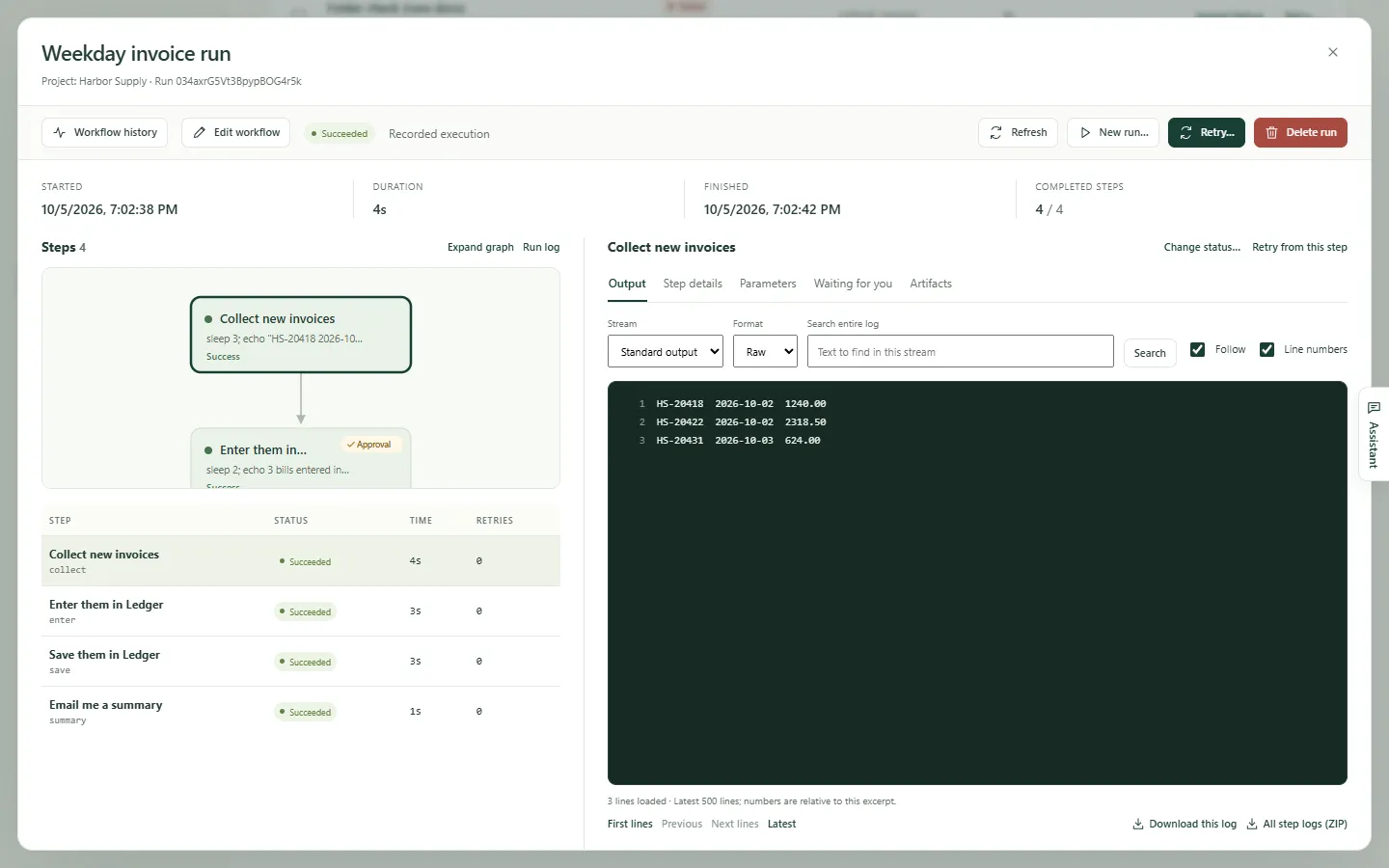
The run opens on its own. Across the top: when it Started, its Duration, when it Finished, and how many Completed steps it got through.
On the left, Steps draws the run as a map and then lists every step with its Status, Time and Retries. Expand graph gives the map more room, and Run log shows the run’s own record rather than a step’s.
On the right is whatever you selected. Choose a step, and:
- Output shows what it printed. Stream switches between Standard output and Errors (stderr); a step that failed opens on its errors. The Run log shows Run events instead.
- Step details shows how the step ended and what it was told to do.
- Parameters shows the values this run was given.
- Artifacts holds the files the run saved.
- Items appears for a step that worked through a list, with one row per item.
- Waiting for you appears when somebody has to answer.
Search a log, or keep it
Section titled “Search a log, or keep it”Logs can be long, and the pane shows the newest part of one.
- Search entire log looks through the whole file, not only what is on screen, for the stream you are looking at. Type the text and choose Search. A long log reports Continue search when there is more to look through.
- First lines, Previous, Next lines and Latest move through it. Follow keeps the newest lines in view while a run is going; Line numbers adds numbers.
- Download this log saves the stream you are reading. All step logs (ZIP) saves every step’s, in one file.
When someone has to act
Section titled “When someone has to act”A run that waits for a person says so at the top, and counts the steps, with Review steps to go straight there. The same runs are under the Waiting tab in the list.
Waiting for you holds one card per waiting step. A person’s task offers Complete task; an approval offers Approve, Send back or Reject run; an automatic step that asked a question takes Your answer. See Build a workflow.
Fix a failed run
Section titled “Fix a failed run”A failed run opens with the failure at the top: which step failed and how.
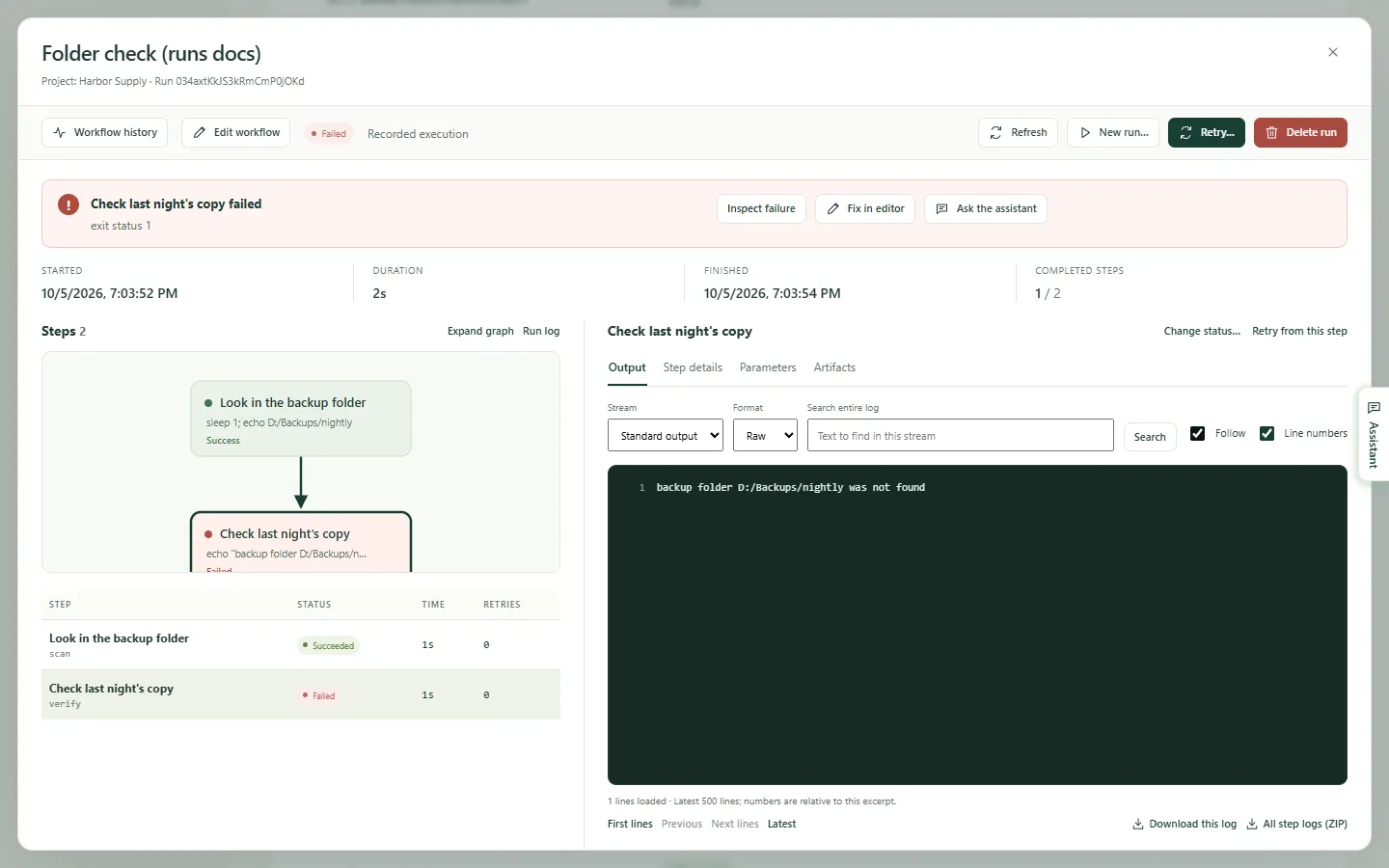
From there:
- Inspect failure selects the failed step so you can read its output.
- Fix in editor opens the workflow at that run, with the run’s inputs and the values its earlier steps collected standing in. Correct the step, then choose Save and continue…, pick where to Start from, and Kitewell starts a new run from there with the same inputs and files. The failed run stays in the record.
- Ask the assistant hands the failure to the assistant to find the cause and propose a fix.
- With failure diagnosis on, the run also says what the failure calls for and which step to look at.
Run it again
Section titled “Run it again”- Retry… continues the same run, under the same run ID, using the workflow and the inputs it was recorded with. Retry scope chooses Failed and unfinished steps or A selected step. Choose Start retry. Earlier attempts stay part of the run.
- Retry from this step, above a step’s output, opens the same form at that step, with Also retry downstream steps for the work that follows it.
- New run… starts a separate run with a new ID. The recorded inputs are filled in and you can change them, and Run using chooses between the workflow as it is saved now and the workflow as this run recorded it. Choose Start new run. The original run stays in the record.
- Cancel run stops a run that is still going or still queued.
- Change status…, above a step’s output, records a step as Succeeded or Failed without running it — for when you fixed its effect by hand. The run’s own result is worked out again. It is offered once the run has finished and no automatic retry is still owed.
Delete runs
Section titled “Delete runs”Delete run removes one finished run with its logs, outputs and files. In the list, tick several and choose Delete…. A run that is still going, or that finished moments ago, is kept and Kitewell says so.
You do not have to tidy up by hand. Kitewell removes runs older than Device settings → Run history retention → Keep run history for, which starts at 30 days, once a day. Project settings → Storage shows how much each workflow’s history takes, with Delete history… per workflow.
The files a run made
Section titled “The files a run made”Artifacts in the sidebar lists the files every finished run in the project
saved, newest first. A step saves one by writing it to
$DAG_RUN_ARTIFACTS_DIR, or by filling in Artifact name (optional) in the
step editor.
Filter by Workflow, by Created within, or by File name, and by kind: All files, Markdown, Images, Data, Text & logs. Select a file to preview it, Full view to fill the window, and Open run → to go to the run that made it. Show older files reaches back further. Files are removed with their runs and are included in backups.
If something goes wrong
Section titled “If something goes wrong”- The run you want is not in the list. The period starts at the last 7 days. Widen Created within, or clear the filters with Reset.
- A button you expect is missing. Retrying, cancelling, answering a waiting step and changing a status need permission to run workflows; deleting a run, Fix in editor and Ask the assistant need permission to edit.
- An old run has gone. Runs older than the retention setting are removed once a day, and deleting a workflow can take its history with it.
Details
Section titled “Details”- The list shows up to 50 runs a page, newest created first. Periods and ordering use the time a run was created, and a retry keeps that time.
- An open run re-reads itself every 3 seconds while it is still going.
- A log pane loads 500 lines at a time, and a run opens on the last 500 lines of a step and the last 200 of the run’s own events. A search returns up to 100 matching lines at a time and stops after 30 seconds, saying where to continue.
- All step logs (ZIP) holds every step’s standard output and errors. The run’s own event log is not in it; download that on its own.
- Change status… sets a step, never a whole run, and only to Succeeded or Failed.