Knowledge
Every team knows things it never writes down: why the portal asks for a code at the start of the month, which invoices are meant to fail, what broke last September and how it was fixed. Knowledge is where a project keeps those notes. The assistant reads them before it answers you, and adds to them as you work, so the next conversation and the next colleague start from what the team already knows.
A page says what a workflow’s definition cannot. The steps, the schedule, and the inputs stay in the workflow; the page says why.
Write a page
Section titled “Write a page”- Choose Knowledge in the sidebar. The project’s pages are listed newest first, and the one you open shows beside them.
- Choose New page and type a title. The page is created as soon as it has one.
- Type the note. Type
/for headings, lists, checklists, quotes, code, tables, and dividers, or select text to get a small toolbar with Bold, Italic, Strikethrough, Code, and Link.##starts a heading as you type,-a list,1.a numbered list. - Choose Add workflow and pick the workflow the page is about. Its name then appears under Linked to, and clicking it opens the workflow. A page about no workflow — a supplier’s website, a team rule — is fine too.
- There is nothing to save. A moment after you stop typing, the line above the page reads Saving… and then Saved. ⌘S on a Mac, Ctrl+S on Windows, saves at once, and leaving the page saves it too.
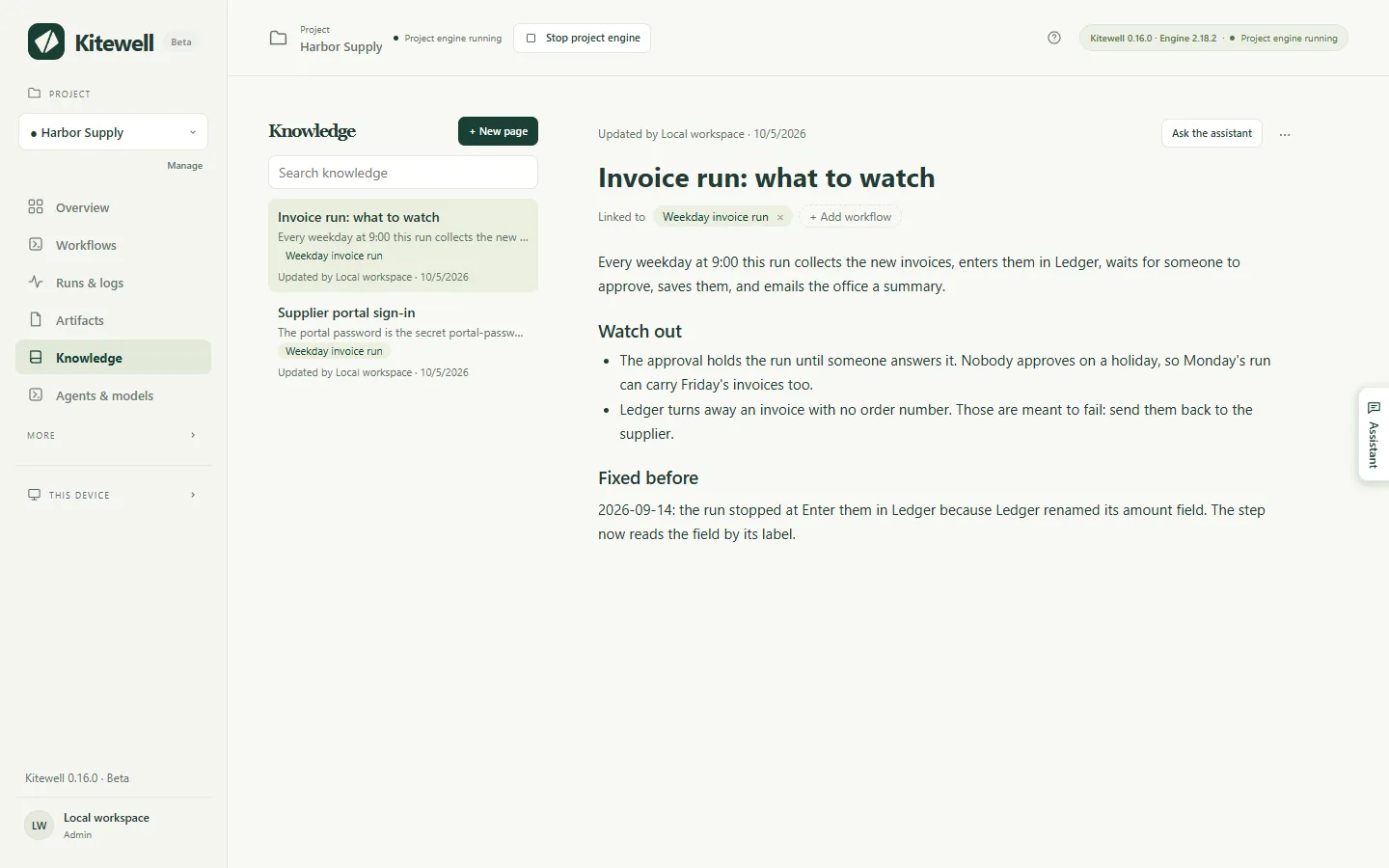
Each page in the list shows its first line, the workflows it is about, and who changed it last. A page the assistant wrote carries an AI mark. Search knowledge finds a page by any word in its title or its text, whether you type it in full-width or half-width characters.
The same pages come to you where they help:
- The Knowledge tab of the workflow editor shows the pages about that workflow, and Add a page starts one already linked to it.
- A failed run shows Related knowledge under its error. What broke before, and how it was fixed, is often there.
What the assistant does
Section titled “What the assistant does”The assistant reads the project’s knowledge before every message: a one-line summary of every page, and in full the page you have open and up to three pages about the workflow you are looking at. It can read any other page, or search them all, when it needs to.
It also writes them. When you tell it a lasting fact, a rule, or a correction, when it changes a workflow for a reason the definition does not show, or when a failure is fixed, it saves that to a page at once and shows a receipt in its panel — “Knowledge added” for a new page, “Knowledge updated” for a change — with Undo and Open. When it creates a workflow, the page about it comes on the same card, and Apply saves both.
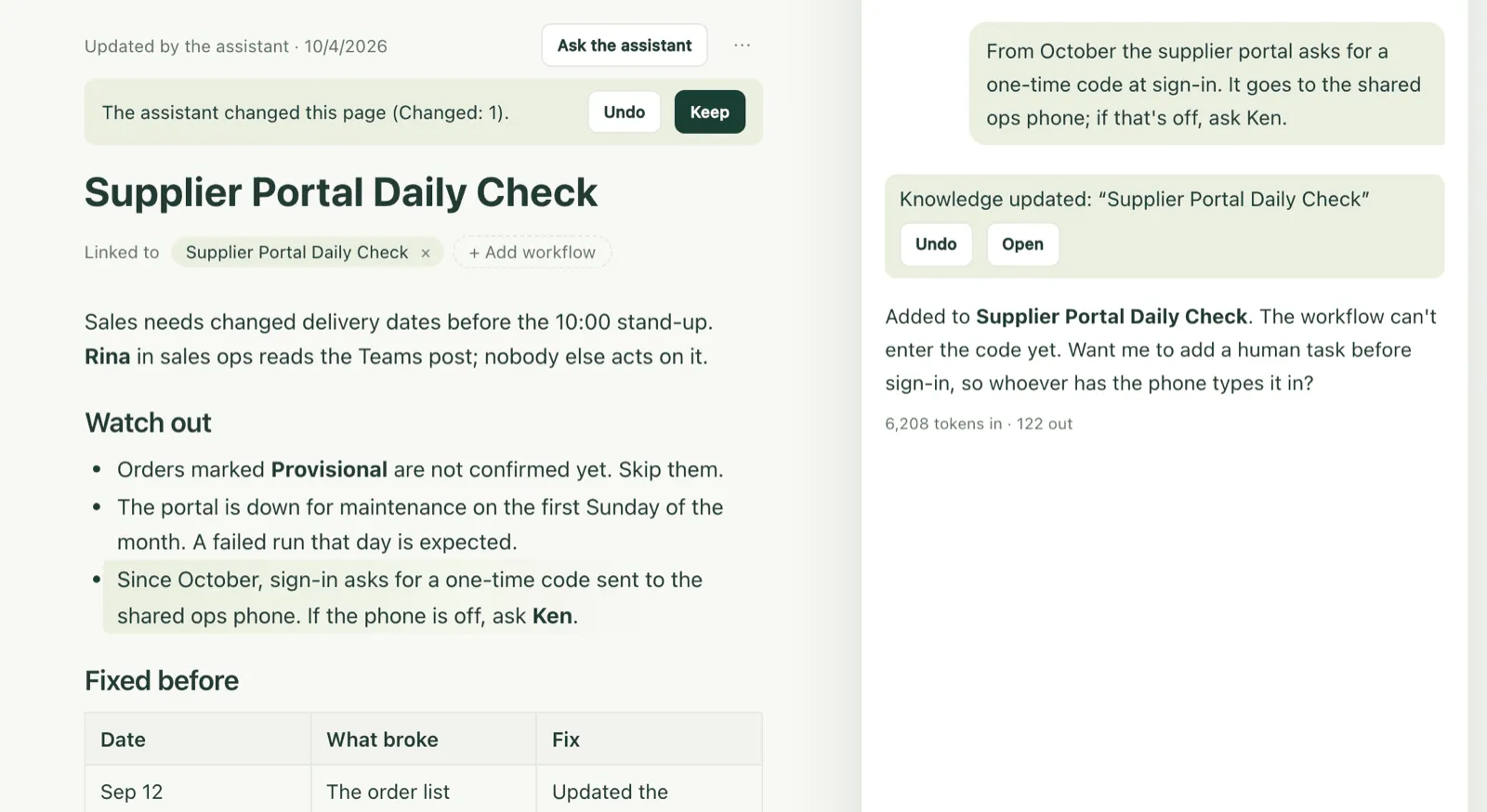
If you have the page open while it writes, the parts it changed are marked, with Undo and Keep above them. The marks go when you start typing.
Two rules keep this safe to leave on:
- It asks first once a conversation has read anything from outside. After the assistant has fetched a web page, or read a run’s log, an artifact, or a sheet, it stops saving by itself: the change becomes a card showing exactly what it would add, and nothing is saved until you choose Apply. Text on a web page or in a log cannot reach everyone’s knowledge unseen.
- It writes only what is true. It writes what you said or decided, or what a run proved, in the language you write in. When a page disagrees with the workflow itself, the workflow wins and the assistant corrects the page.
Pages reach the assistant as reference material. Nothing written on a page is treated as an instruction to it.
When someone else changes the same page
Section titled “When someone else changes the same page”If a teammate, another device, or the assistant changes a page while you are typing in it, nothing you typed is lost. The page says who changed it and offers Keep my version or Use their version; using theirs can be undone with ⌘Z on a Mac, Ctrl+Z on Windows. If the page was deleted while you were in it, the choice is Keep it as a new page or Discard my edits.
If something goes wrong
Section titled “If something goes wrong”- The status says Not saved. The page has no title, or it is over 2,000 characters. Fix that and choose Try again. Edits that could not be saved stay on the page and come back if you open it again while Kitewell is still running; they are not kept across a restart.
- The page opens as Markdown. It holds an image, some HTML, or a link that
is not
https://, which the formatted editor cannot show without losing it. Edit it there, or move that part out.
Details
Section titled “Details”- A page holds a title of up to 60 characters and 2,000 characters of text, names up to 20 workflows, and a project keeps up to 100 pages. From 1,800 characters a counter appears above the page; over the limit it refuses to save and asks you to move the rest into a page of its own.
- ⋯ → Edit as Markdown shows the page’s Markdown for anyone who prefers it, and Edit as formatted text goes back. ⋯ → Delete page deletes it for everyone on the project, after a confirmation.
- Pasting keeps what a page can hold: a table copied from a spreadsheet stays
a table with its first row as the header, and Markdown text becomes
formatted text. Only
https://links are kept. - Pages belong to one project. Everyone on it reads them; editors and the assistant change them. They sync with Dagu Cloud and travel in project exports. They are not part of releases, which carry workflows and secret names only.
- MCP clients read pages with
readandtarget: "knowledge"— the whole index, one page by its ID, or a search. With the Edit and run permission they also write them withchangeand a type ofupsert_knowledgeordelete_knowledge. Reading a workflow returns the pages about it as well.