Automate Excel
You have a list in Excel — this month’s invoices, one to a row — and something to do with each one. Kitewell runs your workflow once for every row and writes each result back into the row it came from. Open the same file afterwards and the receipt numbers are beside the invoices.
Excel never opens. Kitewell reads and writes the .xlsx file directly, so it
keeps working overnight on a locked screen.
Link your workbook
Section titled “Link your workbook”You need the Kitewell app on the computer that holds the file. A browser cannot reach the file, so it does not offer this.
- Make a sheet for the workflow that should run once per row, as Run a workflow over a sheet shows.
- Choose Import in the sheet’s toolbar, then
Link a workbook on this device, and pick the
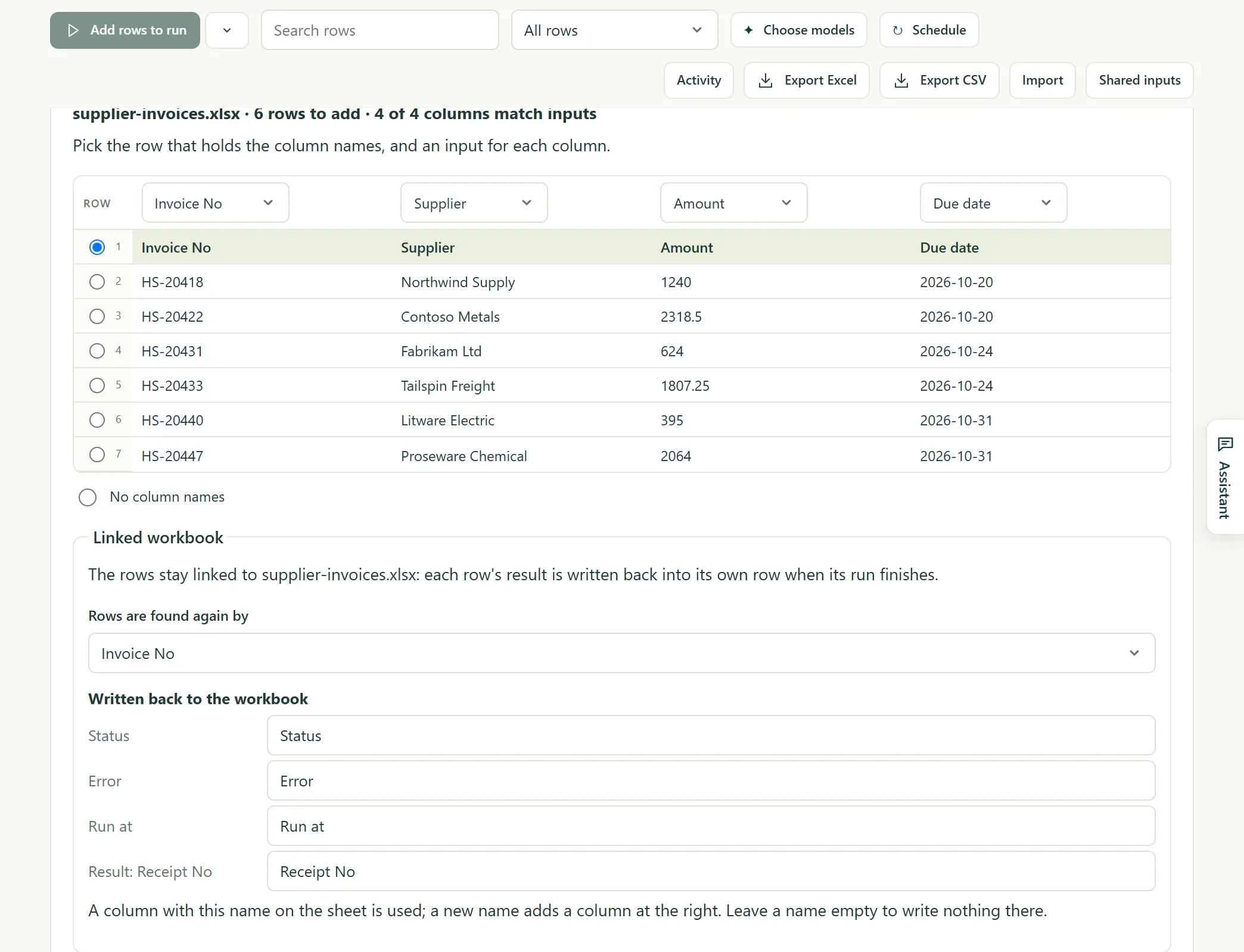
.xlsxfile. Dropping the file on the Kitewell window does the same. - Check what Kitewell found: the Sheet, the row that holds the column names, and which column fills which input. Columns whose names match an input are mapped for you.
- Under Rows are found again by, choose the column that tells rows apart, such as the invoice number.
- Under Written back to the workbook, see the columns results go into: Status, Error, Run at, and one per result. Rename any, or clear a name to write nothing there.
- Choose Link and add 6 rows.
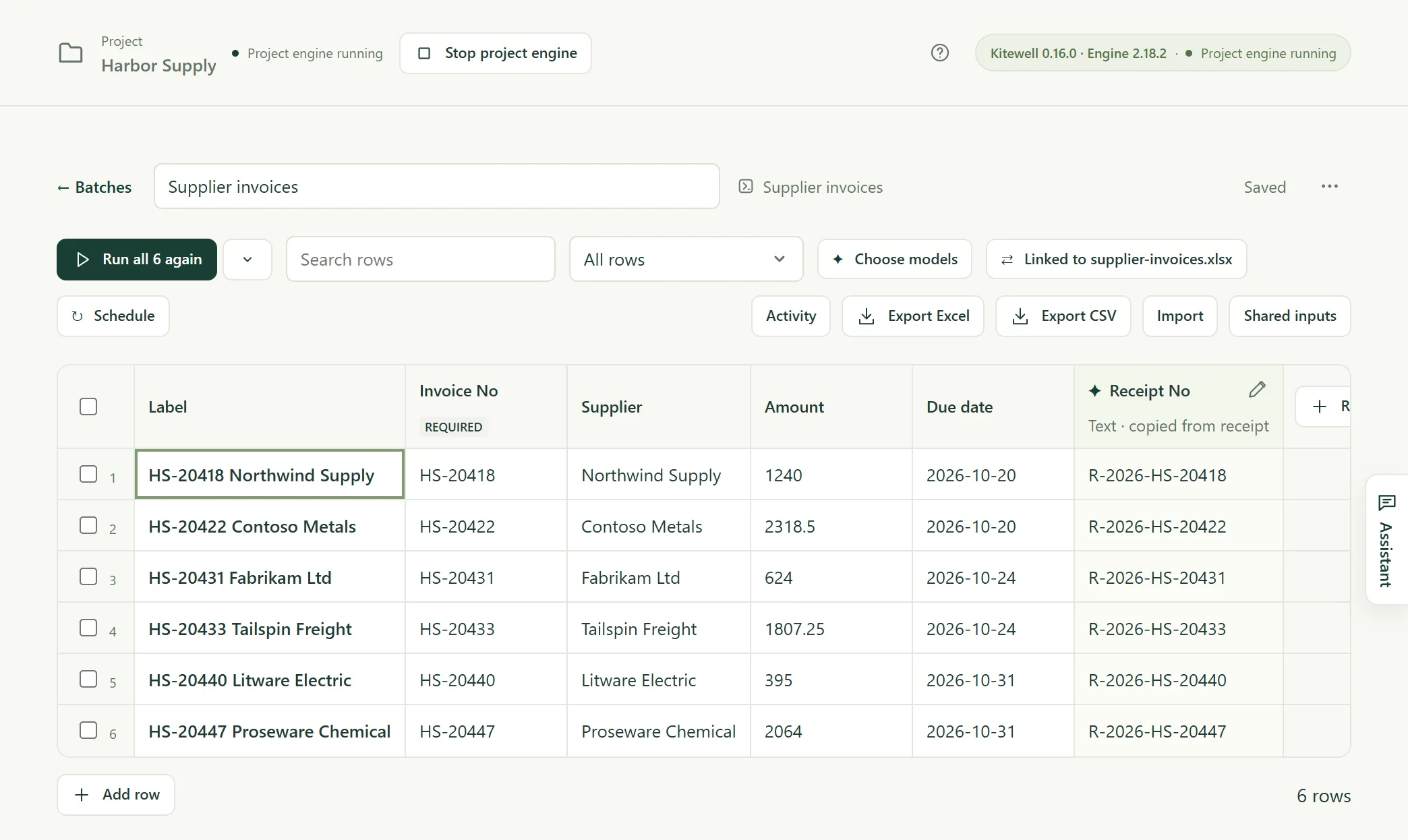
The sheet now shows the workbook’s rows, and the toolbar shows Linked to with the file’s name.
Run the rows
Section titled “Run the rows”Run them as you would any sheet. A cell that cannot become what its input expects — “twelve” in an amount column — is outlined, and that row waits until you fix it.
When rows finish, Kitewell writes their results into the workbook on its own within about half a minute. Write results now does not wait.
| Column | What goes in |
|---|---|
| Status | Done, Partly failed, Failed, Stopped, or Rejected |
| Error | Why the row failed, in one line |
| Run at | When the row ran |
| One per result | A value the run produced, such as a receipt number |
A workbook with Japanese headers gets Japanese words: 状態, エラー, 実行日時, and 済 for Done.
If the file is open in Excel
Section titled “If the file is open in Excel”Nothing fails. The sheet says the results are ready and will be written when
the file is closed in Excel, and writes them the moment you close it.
Save results to a copy now writes supplier-invoices (results).xlsx
beside the file instead.
Every morning
Section titled “Every morning”Give the sheet a schedule. It asks two more things: Read supplier-invoices.xlsx first, and Which rows run — Every row, or Only the rows the workbook added or changed.
With the second, each morning reads the file, runs what is new, writes the results back, and starts nothing when nothing changed. Schedule it on the computer that holds the file; another computer cannot run it.
If something goes wrong
Section titled “If something goes wrong”- Somebody sorted or filtered the sheet. Kitewell reads the file again before every write and follows each row by its key. A row that moved is left out and named; the rest are written.
- A result went in and should not have. Undo puts the file back. Kitewell keeps a copy from before each of the last ten writes.
- The workbook changed on disk. The sheet offers Read the workbook again, which brings new and changed rows in and marks rows the workbook no longer has as No longer listed.
- A step fails. See Troubleshooting.
More about Excel
Section titled “More about Excel”Excel reference covers the rest: reading a quote or order laid out as a form, the ten spreadsheet steps a workflow can use, building the same job as steps instead of a sheet, what stays on your computer, and limits.