Sync projects with Dagu Cloud
Edit a workflow on your laptop and have the office computer run the new version, without sending anyone a file. Dagu Cloud keeps the project’s definitions; every computer still runs the work itself, with its own passwords, and secret values never leave the device they were typed on.
Syncing is a choice you make per project. A project stays on its computer until you sync it, and nothing reaches Dagu Cloud before you do.
What you need
Section titled “What you need”- A Dagu Cloud account. It is free, and a free account syncs one project.
- To share with other people, Kitewell Team. It is an annual contract for up to 25 people, quoted by the number of computers the workspace connects; email [email protected] for a quote, and a larger team takes Enterprise. The team’s owner pays for the workspace and members need no subscription of their own. Kitewell Personal, at $20 a month, is for one person’s own work on one computer and cannot invite anyone. See Pricing.
Sign in
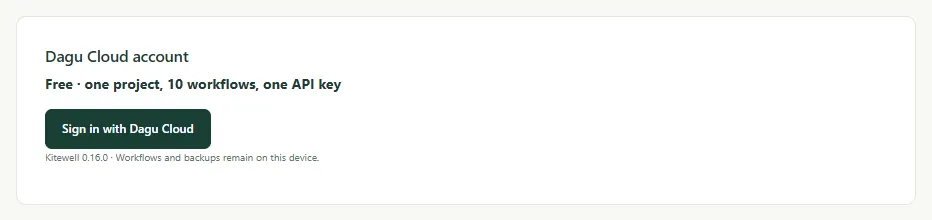
Section titled “Sign in”- Open This device → Device settings and find Dagu Cloud account. It shows which plan this computer is on.
- Choose Sign in with Dagu Cloud.
- Kitewell shows a short code and a Continue in browser button. Open it, sign in, check that the code in the browser matches the one Kitewell shows, and connect the computer.
A computer syncs with one workspace, named in Dagu Cloud account once it is connected. A workspace holds as many computers as its plan: one on a free account and on Kitewell Personal, and the number bought on Kitewell Team. Connecting one more disconnects your own oldest computer in the workspace; if the others all belong to other people, it is refused until one is disconnected or the plan holds more.
Signing in alone sends nothing. A signed-in computer checks its plan and reports its Kitewell version and its own name and ID. Workflows and run status go only for a project you sync, and logs and secret values never go. Signing in also lets the computer use Kitewell’s included model, whose requests go through Dagu Cloud.
Sync a project
Section titled “Sync a project”- Open the project selector and choose Manage.
- In Manage projects, choose Sync to Dagu Cloud beside the project, and confirm.
The project uploads, is marked Synced, and from then on every save goes to Dagu Cloud first.
If an upload is cut short, the project shows Upload incomplete and offers Resume upload. Saves wait until the upload finishes.
A free account syncs one project. Kitewell Personal syncs up to five projects and Kitewell Team up to 15, each with up to 100 workflows. A workspace holds as many computers as its plan: one on a free account and on Kitewell Personal, and the number bought on Kitewell Team. Connecting one more disconnects your own oldest computer in the workspace; if the others all belong to other people, it is refused until one is disconnected or the plan holds more. Syncing a project the plan has no room for is refused, and says why. Synced projects count against the workspace’s plan, not the computer’s own project limit.
To move from Personal to Team, or to change the computers on Team, email [email protected]. To move back to Personal, remove the other people, revoke their invitations, and leave one computer connected first.
Work on the project from another computer
Section titled “Work on the project from another computer”- Sign that computer in to the same workspace.
- Open Manage projects and choose Download from Dagu Cloud.
- In Projects in Dagu Cloud, choose Download beside the project.
The list marks what is already On this device, and marks View only any project your role only lets you read. A project whose name matches one already on the computer is refused until you rename one of them.
Downloaded workflows arrive paused. Run one by hand, then enable the ones this computer should run.
A workflow that works a mailbox is the exception: it runs on one computer at a time, because two would read the same email twice. Enabling such a workflow where another computer already runs it says so, and offers Run it here to move it.
Stay up to date
Section titled “Stay up to date”Kitewell takes changes made elsewhere when it starts, when you open the project, and when you open a workflow to edit it, asking Dagu Cloud at most once a minute. On Personal and Team a computer also checks on its own, about every five minutes, so a computer nobody is sitting at still picks up a new version. A free account checks only at those three moments and when you ask.
To check at any other time, choose Update from Dagu Cloud in Manage projects. A workflow open in the editor takes the update in place as long as you have not typed anything.
Taking a change restarts the project’s engine. Runs already in progress carry on with the definition they started with. A workflow that is new to this computer arrives paused; one that is already here keeps whether it is on, where it runs, and its alerts.
If someone saved the same item since you opened it, your save stops and shows Changed in Dagu Cloud. Choose Overwrite to replace their change with yours, or Cancel to keep your edit without saving it.
Kitewell owns a synced project’s files. Edits made to them outside Kitewell are replaced when a change arrives from Dagu Cloud, or the next time the item is saved in Kitewell.
What syncs, and what stays
Section titled “What syncs, and what stays”A synced project carries what a project export carries: workflow definitions and schedules, agents and models, API connections and their imported documents, servers and server groups, queues, image registries, batch sheets, the names and descriptions of secrets, the project’s workflow defaults, and its knowledge. It also carries the project’s releases, which exports leave out.
Each computer also keeps to itself its registry sign-ins, SSH keys and approved host keys, working directories, which workflows are enabled, its alerts, its run history, and its logs. None of that reaches Dagu Cloud, apart from each run’s status, below.
Follow runs in Dagu Cloud
Section titled “Follow runs in Dagu Cloud”A synced project reports how its runs go. Every two minutes, or sooner when the runs in progress change, each computer sends Dagu Cloud the workflow, status, and trigger of each run, when it was queued, started, and finished, and the names of the steps that failed. It adds its Kitewell version, its system, and when it started.
Parameters, logs, outputs, and sheet values stay on the computer, and a project that is not synced is never reported. People in the workspace see the runs of the projects they can open, in Dagu Cloud.
Dagu Cloud account in Device settings says which applies: Run status is shared with Dagu Console, or Run status sharing is off for this workspace.
The workspace owner turns it off in Dagu Cloud under Settings, by unticking Share Kitewell run status and choosing Save changes. The computers then report only that they run, and runs that finish meanwhile are never sent.
Work as a team
Section titled “Work as a team”The workspace owner manages the team on the Kitewell page in Dagu Cloud:
- Invite a person by email address. The invitation counts toward the 25 people until it is accepted, revoked, or expires after seven days. The person signs in to Dagu Cloud with that address to accept it.
- Synced projects lists every project the team syncs and gives each member
a role on each one:
- Viewer reads and downloads the project.
- Editor also saves changes to it.
- Admin can also delete it from Dagu Cloud.
- No access hides it.
The owner can open every project. A member who syncs a project becomes its admin. A member connects a computer the same way you did, choosing the team’s workspace when Dagu Cloud asks.
A project where your role is Viewer shows View only in the page header and in the download list. You can still run its workflows, set its secret values on your computer, and enable the workflows this computer should run. Kitewell hides the edits Dagu Cloud would refuse: changing workflows, cutting or applying releases, and declaring secrets.
When a plan ends
Section titled “When a plan ends”When a paid plan ends, alerts, MCP Events, and webhooks stop. Everything else keeps running for 7 days, and a banner on every page says on which day the projects, workflows, and API keys or connected apps beyond the free plan stop.
- Choose what stays. In the banner or Device settings, pick which projects, workflows, and keys or apps stay active, up to the plan’s limits. If you choose nothing, the ones that ran or were used most recently stay.
- Not in plan. Anything beyond the limits is marked Not in plan. It does not run, by schedule or by hand, and cannot be edited, but you can still open it, read its run history, export it, or delete it. Runs already under way finish.
- Nothing is deleted. Subscribe again and everything runs as before, with its schedules.
The same applies when you move to a plan with lower limits. A device that cannot reach Dagu Cloud keeps its last paid plan until that license expires, then has the same 7 days.
Stop syncing
Section titled “Stop syncing”- Stop syncing in Manage projects keeps the project both on this computer and in Dagu Cloud. Later saves here stay local.
- Delete from Dagu Cloud, offered in the download list where your role is Admin, removes a project this computer does not sync and frees its place in the plan. Copies on other computers can no longer save to Dagu Cloud.
- A project synced with a different workspace shows Another workspace and offers only Stop syncing.
If a project is deleted from Dagu Cloud, or you lose access to it, it stays on your computer as a local project.
While a computer is offline, saves to its synced projects are refused. Changes that stay on the computer still work — enabling a workflow, setting a secret value — and enabled workflows keep running from the copy that is there. If Dagu Cloud stops accepting the computer’s connection, choose Reconnect account in Device settings.