Automate email
Kitewell can work your inbox for you: find the email that matters, do something with it, and file it away — or write and send mail of its own. It works in a mailbox you connect on this computer, and the sign-in never leaves the computer.
Work that starts or ends in an inbox:
- File each unread invoice’s attachment and record its total.
- Turn support requests into tickets through a connected API.
- Summarize what arrived in the last 24 hours and send the digest.
- Sort incoming mail into folders, with a model choosing where each goes.
- Draft a reply to each request, have someone approve it, then send it.
What you need
Section titled “What you need”A mailbox connected on this computer: Gmail or Google Workspace, Microsoft 365 or Outlook.com, iCloud, Yahoo, Fastmail, or any IMAP mailbox. Mail accounts, in the project, lists the mailboxes the project’s workflows use and the state of each one on this computer.
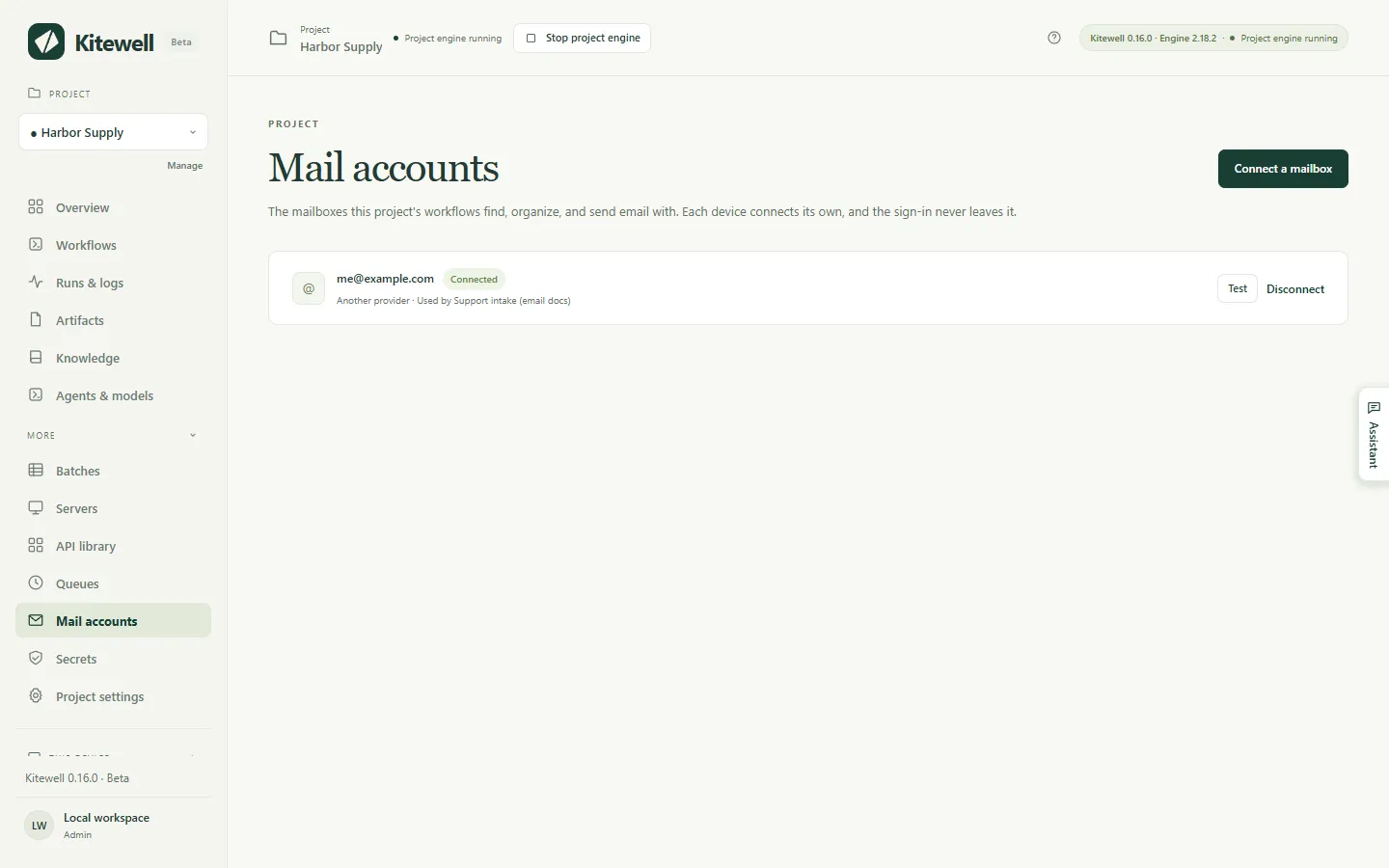
To add one, choose Connect a mailbox there — or Connect a mailbox… in the Mailbox field of any email task — and type the address. Kitewell works out the provider from the address, or from where a custom domain’s mail goes, and the Provider list corrects a wrong guess.
| Provider | Connects with |
|---|---|
| Gmail, Google Workspace | An app password while Google reviews Kitewell |
| Microsoft 365, Outlook.com | A sign-in in your browser |
| iCloud, Yahoo, Fastmail | An app password made on the provider’s site, which the dialog links to; the servers are filled in |
| Any other mailbox | IMAP and SMTP server, port, security, user name, and password |
A browser sign-in opens the provider’s page, waits, and carries on by itself once you approve. Kitewell then signs in once, lists the folders, and reports how many unread emails the inbox holds — or why the sign-in failed. Nothing is saved until that check passes.
Per provider:
- Google blocks Kitewell’s browser sign-in for most accounts until it finishes reviewing Kitewell’s Gmail access. Its page says “This app is blocked” and offers no way past. Until then the dialog starts a Gmail mailbox from an app password: turn on 2-Step Verification, make an app password named Kitewell, and paste it. A browser sign-in that does work has to use the address you typed and tick the Gmail box. A Google Workspace administrator who restricts third-party apps has to allow Kitewell under API controls.
- A Microsoft 365 mailbox needs IMAP and Authenticated SMTP turned on, which an administrator does in the Microsoft 365 admin center, under the user’s Mail, then Manage email apps. An organization that allows only approved apps gets a link for its administrator to approve Kitewell once. A shared mailbox connects by signing in as a member who can open it.
- An app password is made on the provider’s site and can be revoked there.
A connection lasts until the provider ends it: Kitewell keeps a browser sign-in current while the computer is on. A mailbox whose sign-in stopped working shows Reconnect on Mail accounts, on Overview, and beside any run it failed.
Build your first email workflow
Section titled “Build your first email workflow”This example finds unread email in a support inbox, creates a ticket for each through a connected API, and marks each email read once its ticket exists.
-
Open a workflow, choose Add step, and choose Find emails. Pick the Mailbox, leave Folder on
INBOXand Unread only on, and give it a Step name such asFind new requests. Choose Test to see which emails match — a test never marks anything read.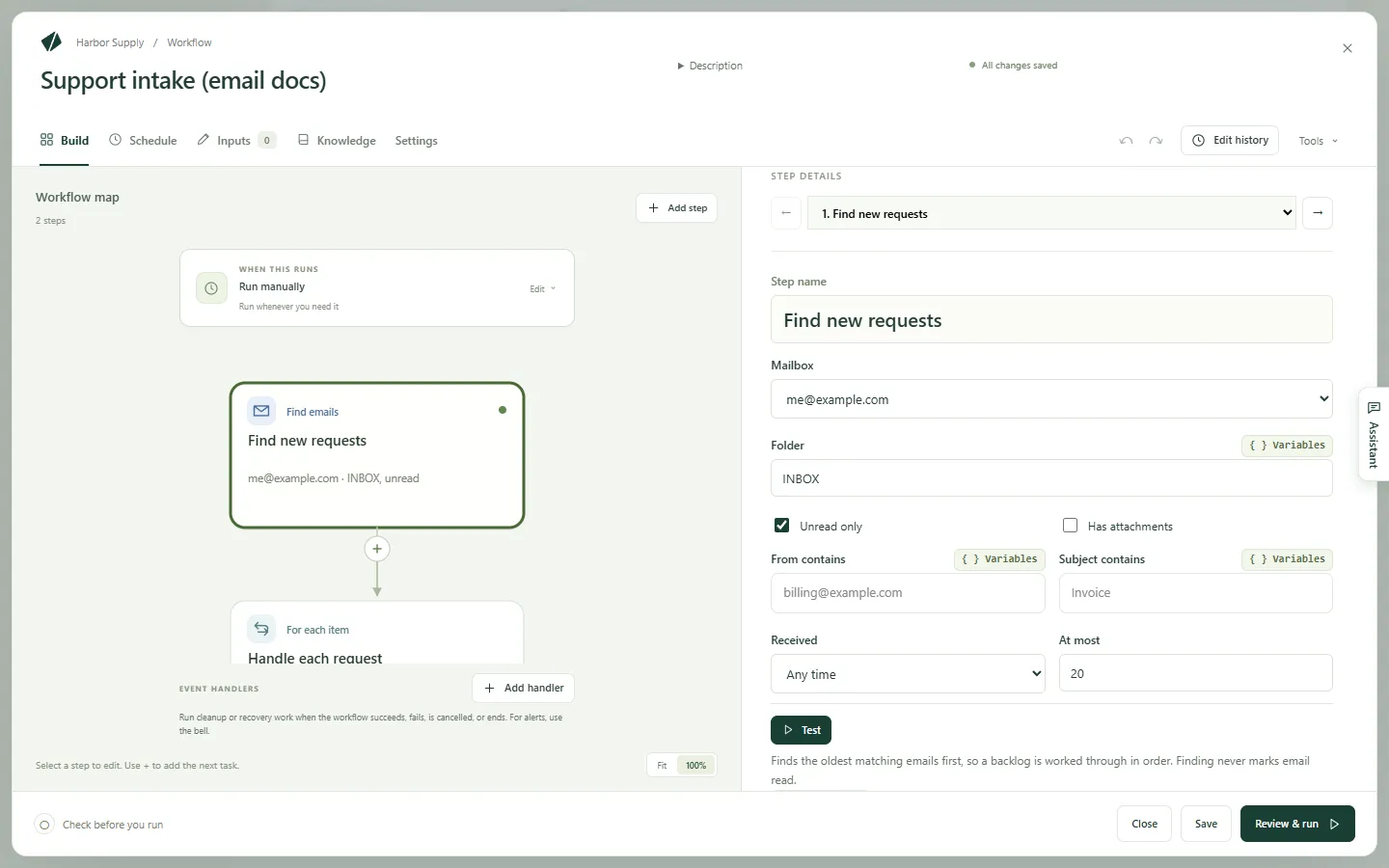
-
Choose For each email…. Kitewell adds a For each item loop over what the step found, ending in an Organize emails step that marks the current email read.
-
Inside the loop, before that step, add Use an API action with the ticket system’s “Create issue” operation. In its fields, the variable picker offers the current email’s sender, subject, date, and text.
-
Add a schedule, such as every five minutes.
In a new workflow, Or start from an example offers Handle each new email, which is this shape with the work left for you to fill in.
What the email steps do
Section titled “What the email steps do”Find emails lists matching email in a Folder, oldest first, with each
sender, subject, date, and text. Narrow it with Unread only,
Has attachments, From contains, Subject contains, and
Received — Any time, Last hour, Last 24 hours,
Last 7 days, or Last 30 days.
Save attachments into the run’s files puts the files with the run’s
artifacts. At most caps how many to take, 20 by default and 50 at the
most, so a backlog drains in order over several runs. Finding never marks
email read. Later steps read the list as
${steps.<identifier>.outputs.messages}.
Organize emails acts on the Emails you give it: what a Find emails step found, one of them, or an AI task’s answer naming each email and where it goes. Mark sets Mark read, Mark unread, Flag, Remove the flag, or Leave as is. Move sets Leave in place, Move to a folder — named in Folder, and created if the mailbox has none by that name — Archive, or Move to Trash. Nothing is ever deleted permanently, and an email someone already moved is reported as missing without failing the step. Test only previews the change.
Send email sends from the mailbox in Send from, with To,
Subject, Message, and Attachments · one file path per line.
Inside a loop over found emails, Reply to the current email threads the
reply under it, addressed to its sender with Re: and its subject unless
To and Subject say otherwise. Gmail and Microsoft 365 keep a copy in
Sent; other providers may not.
Handle each email once
Section titled “Handle each email once”Keep Unread only on, and mark each email read — or move it — inside the loop, right after that email’s own steps. An email whose work failed then stays unread, so the next run retries only that one.
Marking after the loop instead would mark the failed email too, because the steps after a loop run even when some items fail, and it would never be tried again. For work on the whole batch, such as a digest, one Organize emails step at the end is right.
Review & run warns when found email is never marked, when it is marked only after the loop, and when an email’s text reaches a command or an AI agent that can run commands. Whoever sent the email wrote that text, so treat it as theirs: for a model that reads email, use an Ask a model step, which cannot run commands.
Run it as a team
Section titled “Run it as a team”A mailbox address travels inside the workflow like any other text; a connection never does. A project that arrives from a teammate or from Dagu Cloud lists the mailboxes to connect on its Overview, and a run that needs one is refused until it is connected on this computer.
In a synced project, a scheduled workflow that works a mailbox runs on one computer at a time, so two computers never process the same email. Turning it on where another computer already runs it asks whether to move it here; the other computer turns it off when it next syncs. The workflow list says which computer runs it.
If something goes wrong
Section titled “If something goes wrong”- A run is refused because a mailbox is not connected here. Open Mail accounts and choose Connect or Reconnect. The dialog says what the provider refused.
- Google says “This app is blocked”. Close that page, go back to Kitewell, and choose Use an app password instead.
- Every run finds the same emails again. The emails are never marked: add an Organize emails step inside the loop that sets Mark to Mark read.
The rest is in Troubleshooting.
Details
Section titled “Details”Credentials are kept out of backups, exports, and sync; a restored computer asks you to connect again. Email a step reads is stored with the run on this computer, under the run’s retention, and leaves only where your workflow sends it — such as to the model you choose in an AI task. See What leaves your computer.
A Gmail browser sign-in asks to read, label, trash, and send email
(gmail.modify), never to delete it permanently; the consent page and the
privacy policy say so. An app password, by contrast, gives IMAP
and SMTP access to the whole mailbox.
A Find emails step takes at most 50 emails per run. There is no forwarding, no drafts, and no trigger on a single email arriving; a schedule with Unread only does that job. A Microsoft 365 tenant with IMAP or Authenticated SMTP turned off cannot connect at all.
The workflow in Build your first email workflow is three steps: Find emails with Unread only on, a For each item loop over what it found with Items at a time set to 1, and inside the loop, Use an API action with the ticket system’s “Create issue” operation followed by Organize emails marking the current email read.